How to Convert EML to PST (3 Manual + 1 Bulk Method)

Quick Summary
This guide explains how to convert EML to PST file format without losing data. You will learn three manual methods (Drag and Drop, Windows Mail bridge, and Save As) plus a faster automated converter. Follow the steps to migrate EML messages, attachments, and folder hierarchy into Outlook PST safely.
Table of Contents
- Why Do Users Need to Export EML to PST
- Effective Methods to Convert EML to PST
- Method 1: Drag and Drop Method
- Method 2: Windows Mail to Outlook Method
- Method 3: Save As Method for Individual Files
- Limitations of Manual Methods
- Convert EML to PST Using Automated Software
- Step Guide to Convert EML to PST
- Handle Attachments and Folder Hierarchy
- Troubleshooting Common Outlook Import Issues
- Conclusion
- Frequently Asked Questions
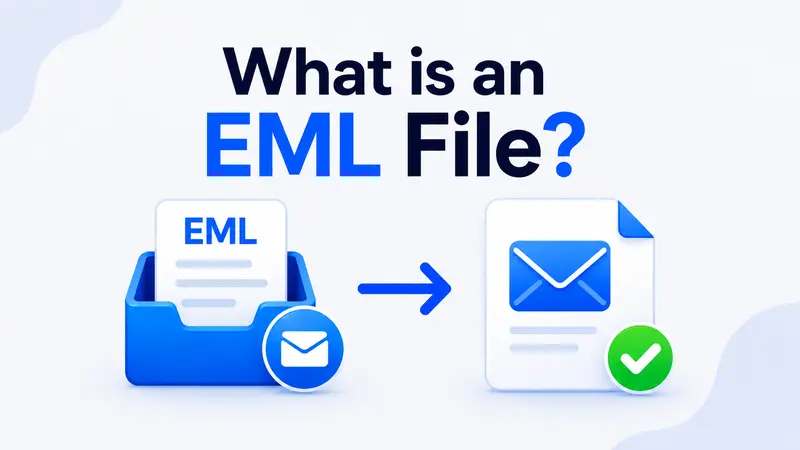
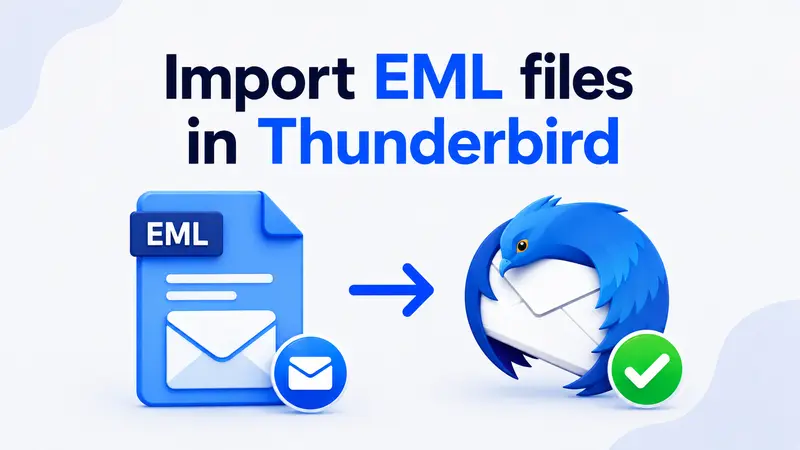
Are you using different email clients such as Apple Mail, Thunderbird, or Windows Live Mail and want your EML or email message files inside an Outlook PST data file? Then you are at the right place. In this article, we will discuss how to convert EML to PST file format using both manual and professional solutions.
If you are a regular user of MS Outlook, then you might know that Outlook does not support importing files from other email clients. So it becomes necessary to save EML messages and then export them into PST files. In some versions of classic and new Outlook, you cannot open individual EML files only. Therefore, follow this how to guide and learn both manual and professional techniques. This way, you can access all EML files in MS Outlook PST effortlessly.
Why Do Users Need to Export EML to PST
The main reason to convert EML files to PST format is so that files can be moved from an EML supported email client to MS Outlook. In addition, there are several other common benefits of converting EML to PST files, which are listed below.
- To standardise email data by converting EML files from different email clients into a single MS Outlook, which uses a PST file.
- Archiving long term email as PST files, accessible across multiple Outlook versions.
- For optimising large datasets of emails. So it is necessary to convert EML to PST format for easy and quick search, filtering, and maintenance.
- For using advanced Outlook features such as categories, folder hierarchy, and mailbox organization. To use these features the files should be in PST format.
- For consolidating mail across departments under one shared Outlook profile during corporate migrations.
In technical terms, exporting EML files to PST format simplifies email data management and improves email handling on MS platforms, which ensures reliable storage of large scale email data. So we recommend using the EML Reader Tool to view your email message files completely free of cost.
Effective Methods to Export EML to PST Files
It is very important to choose the right method to convert EML files to PST. The reason is that email files often contain important data and attachments. Therefore, the best method ensures accurate migration, which maintains data integrity. So here are some effective ways to convert EML to PST file format.
- Drag and Drop Method
- Windows Mail to Outlook Method
- Try Save As Method
- Using a Professional Tool
Let us understand them one by one.
Method 1: Drag and Drop Method
This method is one of the simplest ways to save EML to PST, as it is free to import EML files directly into MS Outlook. So it is useful only for small conversions where only a limited number of files need to be moved.
Follow These Steps:
- Open MS Outlook on your system.
- Open the folder where EML files are stored.
- Select the required EML files.
- Drag and drop them directly into the Outlook folder.
- Outlook automatically stores them in the default PST file.
Method 2: Windows Mail to Outlook Method
This method uses the Windows Mail client just to convert EML files into Outlook files. So one should import email data files into a folder in Windows Mail and then move that folder into MS Outlook, which automatically saves the file in PST format.
Use these Given Steps:
- Open Windows Mail.
- Create a new folder inside Windows Mail.
- Move EML files into that folder.
- Launch Microsoft Outlook.
- Drag the folder from Windows Mail to Outlook.
- Emails are saved in Outlook PST format.
Method 3: Save As Method for Individual Files
It is only helpful for a few EML files that need to be converted. So it is best suited for single email message files.
Follow the given steps:
- Open the EML file in Windows Mail.
- Click File and then Save As.
- Save the email in MSG format.
- Import it as an MSG file.
- It auto stores in a PST file.
Limitations of these Manual Methods
- It is not suitable to convert EML to PST files in bulk mode.
- Requires a lot of effort and technical understanding.
- High risk of data loss or missing attachments while exporting.
- Preservation of folder hierarchy may not be possible.
- Very time consuming for large email collections.
- Manual conversion can break Unicode characters in non English mail.
How to Convert EML to PST Using Automated Software
Since manual methods to export EML files into PST are very time consuming and also require technical knowledge, they are not suitable for bulk data. So we recommend using professional software that makes the entire process easy for handling a large volume of data, preserving email structure, and reducing the risk of data loss. Furthermore, this dedicated software preserves accuracy, speed, and complete control over the conversion process.
Download Free Trial
100 percent safe and secure. Convert EML to PST with folder hierarchy intact.
Benefits of Using an Automated EML to PST Converter
- Supports bulk conversion of EML files in one go.
- Maintains original email formatting and folder hierarchy.
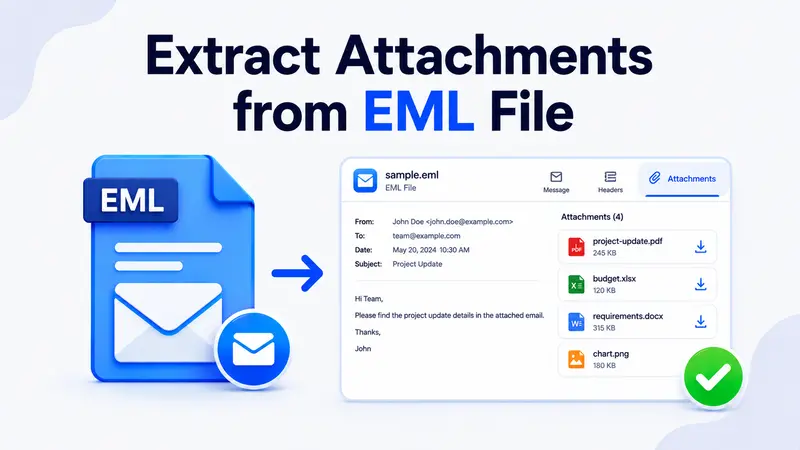
- Easy selection of files along with their attachments.
- Saves a lot of time as compared to manual methods.
- Creates a detailed report after exporting for audit purposes.
- Compatible with Outlook 2007, 2010, 2013, 2016, 2019, and 2021.
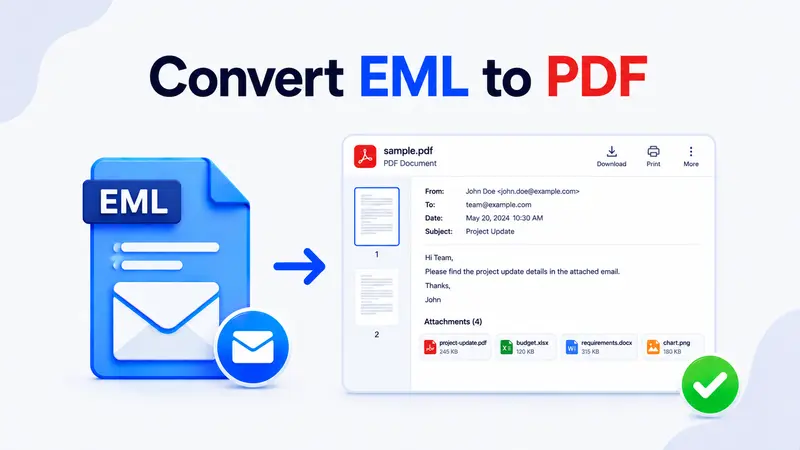
Read More: How to Convert EML to PDF using a quick online workflow.
Step by Step Process to Convert EML to PST Format
- Download and launch the automated software on your system.

- Click on Add File and Folder to upload EML files.
- Select PST format for the conversion process.
- Browse a destination path to save the output PST file.
- Tap on the Export button to export EML to Outlook PST format.


Get the EML to PST Converter
Bulk migration with folder structure, attachments, and metadata preserved.
Handle Attachments and Folder Hierarchy in PST
When you migrate EML files into Outlook PST, attachments and nested folder hierarchy need careful handling. So the automated converter preserves embedded images, PDF and DOCX attachments, and the original folder tree exactly as it appeared in Thunderbird or Apple Mail. Furthermore, Outlook PST files have a recommended size limit of 50 GB. As a result, large archives should be split into multiple PST containers for smoother indexing.
Moreover, inline images that use content identifiers can break when manually copied. The converter rebuilds these references automatically so messages render inside Outlook exactly as they did in the source client.
Troubleshooting Common Outlook Import Issues
- Outlook freezes during drag and drop. Close Outlook, reopen in safe mode, and try importing smaller batches of EML files at a time.
- Attachments missing after import. Open the EML in a viewer first to confirm attachments exist, then use the automated converter for reliable migration.
- Folder hierarchy flattened. Drag and drop loses subfolders. Use the converter to keep nested folder structure intact.
- Garbled subject lines. Confirm the EML file is saved in UTF 8 encoding before importing into Outlook.
- PST file size too large. Split EML data into multiple PST containers under 50 GB each for better Outlook performance.
Conclusion
In the above article, we have listed four ways to convert EML to PST files. The manual method is useful if you have only a small chunk of EML files. However, the free solutions take both time and effort. Therefore, in such cases we recommend using the automated tool for a quick and secure conversion of EML files to PST format. This way, you can manage and access EML files in MS Outlook without data formatting issues or loss.
Frequently Asked Questions
Q 1. Why do we need to convert EML to PST
PST format allows EML messages to be easily opened, stored, and managed by MS Outlook with full support for folder hierarchy, categories, and search.
Q 2. Can I convert multiple EML files to PST at the same time
Yes, you can convert multiple EML files at once by using the automated software. So you just select the folder that contains all EML files, and the tool saves you considerable time during bulk migration.
Q 3. What are the steps to export EML to PST using an automated tool
Follow these simple steps to complete a quick and safe conversion. Install and run the converter, add folders containing EML files, choose PST as the exporting format, then click Export to start the conversion.
Q 4. Will the converter preserve attachments and folder hierarchy
Yes, the automated converter keeps original attachments, embedded images, and nested folder structure intact during the EML to PST migration.
Q 5. Is the converter compatible with the latest Outlook version
Yes, the converter creates PST files that work with Outlook 2007 through Outlook 2021 and Microsoft 365 desktop. So compatibility is not an issue for modern Outlook installs.
Q 6. Can I convert EML files to PST on Mac
The automated converter runs on Windows. However, you can copy EML files from Mac to a Windows machine over a network share, then run the conversion to produce a PST file that you can later open inside Outlook for Windows.
Over to you. Which conversion method worked best for your EML archive? Share your migration story in the comments so other readers can pick the right approach.