How to Convert EML to PDF (with Attachments, Free Methods)

Summary
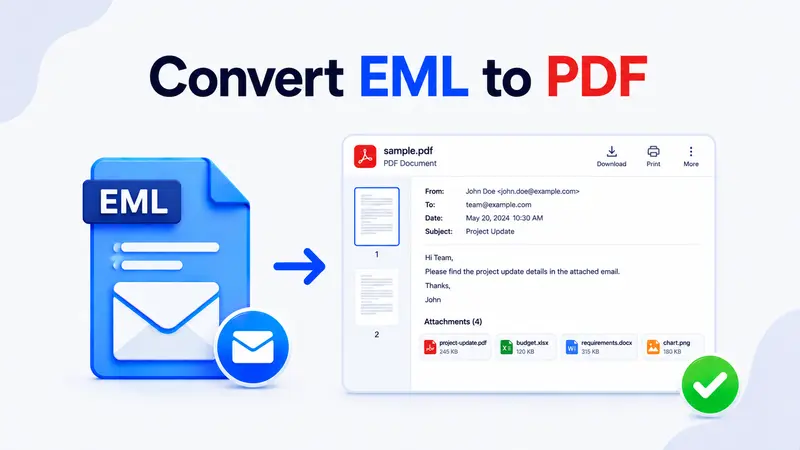
You can convert EML to PDF in four simple ways: open the file in your browser and print to PDF, use Outlook’s File then Print, run Thunderbird with ImportExportTools NG, or upload to a free online viewer. So this guide walks through each method, including attachment handling, batch conversion, and common fixes.
Table of Contents
- Why Convert EML to PDF
- Method 1: Online EML to PDF Viewer
- Method 2: Print to PDF From Outlook
- Method 3: Thunderbird With ImportExportTools NG
- Method 4: Open in Browser and Save as PDF
- Expert Tool to Convert EML to PDF
- Preserve Attachments Inside the PDF
- Batch Convert Many EML Files at Once
- Troubleshooting Common Conversion Issues
- FAQs
EML files store a single email message in plain text, but PDF is what most people need for sharing, archiving, and printing. So if you have a folder full of .eml files and want to turn them into clean PDFs, then this guide covers every working method. For background on the format itself, see our complete guide to the .eml file format.
Online EML Viewer Tool
Open, preview, and save EML files directly in your browser. No install required.
Why Convert EML to PDF
PDF is the universal document format. Therefore, converting EML to PDF solves several common problems at once.
- Long-term archiving: PDFs render the same way in ten years as they do today. So they outlast email clients and operating systems.
- Legal hold and compliance: courts and auditors prefer PDF/A because the format locks in headers, body, and attachments.
- Easy sharing: almost everyone can open a PDF. By contrast, .eml needs a compatible email client or viewer.
- Searchable text: PDF readers index the message body, so you can find any phrase across thousands of saved emails.
- Print-friendly: If you need a paper trail, then PDF is the clean route from screen to printer.
Plus, once an .eml is a PDF, it no longer depends on Outlook or Thunderbird being installed. As a result, you can read it on a phone, a Chromebook, or any device with a PDF reader.
Method 1: Online EML to PDF Viewer (Fastest)
The fastest route is a browser-based viewer. So upload your .eml file, preview it, then use your browser’s print dialog to save as PDF.
- Open the EML Viewer Online in any modern browser.
- Drag your .eml file into the upload area, or click to browse.
- The full message renders with headers, body, and attachments visible.
- Press Ctrl + P (or Cmd + P on Mac).
- Choose Save as PDF as the destination.
- Click Save and pick a folder.
This method needs no software installation and works on Windows, Mac, Linux, and Chromebook. Also, if you need to handle attachments separately, see our guide on how to view EML file attachments online.
Method 2: Print to PDF From Outlook (Export EML to PDF Format with MS Outlook)
If Outlook already opens your .eml files, then the built-in print engine handles PDF export cleanly. So here are the exact steps:
- Locate the particular EML file that you want to convert on your system.
- Right-click on the file, select the Open With option, and then choose Outlook.
- Now, click on the File tab at the top and then select the Print option from the left pane.
- Next, in the Printer field, select Microsoft Print to PDF and then click on Print.
- After this, give an appropriate name to the file, select Location, and click on Save.
So you end up with a PDF that preserves headers and the formatted body. However, Outlook’s print engine does not embed attachments. Therefore, save them separately if you need them inside the PDF.
If Outlook refuses to open your .eml file, then first see our EML file not opening in Outlook troubleshooter.
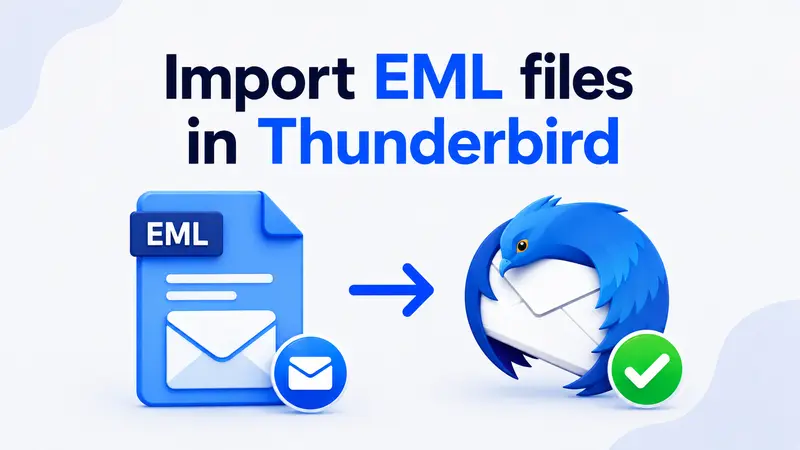
Method 3: Thunderbird With ImportExportTools NG (Import EML files to PDF with Mozilla Thunderbird)
Thunderbird is free and has a powerful add-on called ImportExportTools NG. So this combination is the best free route for batch conversion.
- Open the Thunderbird application on your system and right-click on the particular mailbox folder in which you want to import the EML files.
- Now, choose ImportExportTools NG and then select the Import Messages option to open the File Explorer wizard.
- Next, locate the required EML files and click on Open to add the selected EML files to the Thunderbird application.
- Right-click on the selected emails, click on Print, and choose the Microsoft Print to PDF option.
- Click on the Print button, select the saving location, and finally click on the Save button.
Importantly, Thunderbird preserves the HTML rendering of the email so the saved PDF looks exactly like the original message. Plus, the add-on also supports an Export selected messages option for bulk PDF output in one go.
Method 4: Open in Browser and Save as PDF
If you want a quick one-off conversion without any extra software, then a modern browser will do.
- Rename your .eml file to .mht or .html so the browser treats it as a webpage.
- Drag the renamed file into Chrome, Edge, or Firefox.
- The headers and body render in the browser window.
- Press Ctrl + P and pick Save as PDF.
However, this method may strip inline images or HTML formatting depending on how the email was encoded. So for richer messages, use Method 1 or Method 3 instead.
Expert Tool to Convert EML to PDF with Attachments
For users who handle large EML archives or legal exports, a dedicated converter saves hours of manual work. So a professional EML to PDF converter is often the right call when attachments must stay embedded in every output PDF.
Why Use a Professional Tool to Convert EML to PDF with Attachments?
- Bulk conversion: processes thousands of EML files in a single run without manual print clicks.
- Attachments embedded: attachments stay inside each converted PDF instead of being dropped.
- Metadata preserved: headers, dates, and Message-ID fields stay intact across the batch.
- Naming conventions: rename PDFs by subject, date, or sender for easier archival.
- Custom page settings: control margins, fonts, and page size before export.
SysTools EML Converter — Download Free Trial
Convert thousands of EML files to PDF with attachments embedded inline, metadata preserved, and custom naming.
Preserve Attachments Inside the PDF
Most print-to-PDF routes lose the attachments because the print engine only renders the visible message body, not the embedded files. So here is how to keep every attachment inside the final PDF.
- Embed attachments inline: A professional EML to PDF converter writes each attachment into the PDF as an embedded file, so the document stays self-contained.
- Merge attachment PDFs: convert non-PDF attachments to PDF first, then use a free PDF merger to combine the message PDF with the attachment PDFs into one bound file.
- Use portfolio mode in Adobe Acrobat and similar tools to create a PDF portfolio that holds the message PDF plus every original attachment side by side.
- Pick eDiscovery exports for legal workflows; dedicated EML to PDF tools embed attachments with metadata intact for chain of custody.
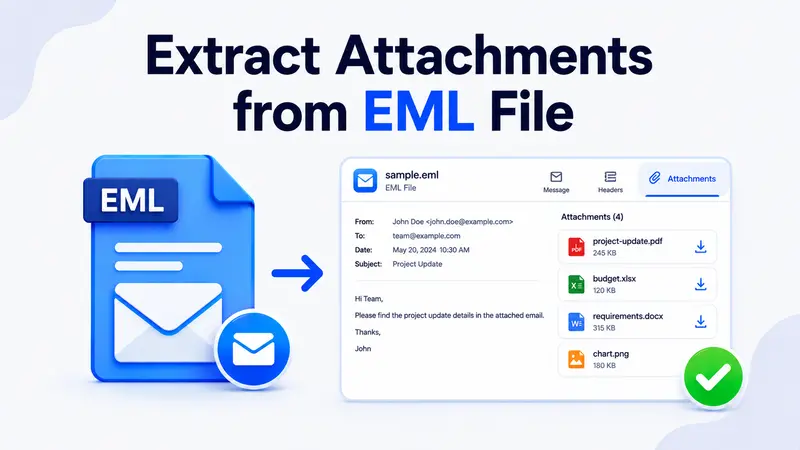
If your goal is the opposite, that is pulling attachments out of the .eml as standalone files like images, ZIPs, or PDFs without converting the email body, then follow our extract attachments from EML files guide instead.
Batch Convert Many EML Files at Once
Converting one email is easy. However, converting hundreds takes a different approach. So here are the three practical batch options.
Thunderbird with ImportExportTools NG
Inside Thunderbird, select all the messages in a folder, then use ImportExportTools NG’s Export selected messages option with PDF as the target. As a result, you get one PDF per email in a folder you choose.
Convert to PST first, then export
For very large archives, first convert the .eml batch to a single PST file. Then open the PST in Outlook and print messages to PDF in groups. For the EML to PST step, see our guide on converting EML to PST.
Use a command-line tool
Developers can use Python libraries like email plus weasyprint to script EML to PDF conversion. So if you handle conversions regularly, then a small script saves hours.
Troubleshooting Common Conversion Issues
A few problems show up again and again. Therefore, here is how to handle each one.
The PDF is missing the email body
This usually means the .eml file is corrupt or truncated. First, open it in a plain text viewer to confirm it has a body section. Then re-download the original if the body is missing.
Special characters look broken in the PDF
The viewer probably ignored the charset header. So switch to a client that respects UTF-8 encoding, like Thunderbird or the online EML viewer.
Attachments do not show up in the PDF
Print-to-PDF only captures the rendered message. Therefore, save attachments separately and merge them with a free PDF tool.
The PDF is huge
Large file sizes usually come from embedded images. So in your browser’s print dialogue, reduce image quality or switch the page size to A4 before saving.
Outlook is not in the printer list
Microsoft Print to PDF is a Windows feature. So enable it under Settings, then Apps, then Optional features, and finally tick Microsoft Print to PDF.
FAQs
Can I convert EML to PDF without installing software
Yes. Just upload the .eml file to the free EML Viewer Online, press Ctrl + P, and save as PDF. So no installation is needed.
Will conversion keep the email formatting intact?
HTML emails keep their formatting when you use a viewer that renders the body properly. However, basic text editors strip the formatting. Therefore, use Thunderbird, Outlook or the online viewer for best fidelity.
Can I batch convert hundreds of .eml files at once
Yes. Thunderbird with the ImportExportTools NG add-on can export selected messages as PDF in bulk. Alternatively, convert the batch to PST first and then print groups from Outlook.
Are attachments included in the PDF automatically?
No. Print-to-PDF only captures the rendered message body. So save attachments separately and merge them with a free PDF merger if you need a single combined file. Alternatively, a dedicated EML to PDF converter embeds attachments inline.
Why is my converted PDF blank
The .eml file may be corrupt, truncated or empty. First, open it in a text viewer to confirm a valid body. Then re-export the message from the source mail client and try again.
Is EML to PDF conversion safe for sensitive emails
Yes, when you use trusted tools. Specifically, browser-based viewers process files locally so the message never leaves your machine. Also, offline tools like Thunderbird keep everything on your system.
What’s the best free way to convert EML to PDF on Mac
On macOS, open the .eml in Apple Mail, then choose File followed by Export as PDF. Alternatively, drag the file into Safari and use Cmd + P to save as PDF.
So those are the four reliable ways to convert EML to PDF, plus an expert tool option, attachment handling and fixes for the issues that come up most often. Which method matches your situation best?