How to Search EML Files and Find Text Inside Them

Quick Answer
You can search EML files with five methods. Method 1 uses PowerShell on Windows. Method 2 uses grep on a Mac or Linux. Method 3 uses Thunderbird and its search. Method 4 uses a Python script that opens every body. Method 5 uses software with search operators. Plain text search misses base64 bodies. Copy your .eml files before you start.
Table of Contents
- How Do You Search EML Files?
- Why Do Users Search Inside EML Files?
- Which Method Should You Use to Search EML Files?
- Method 1: Search EML Files With PowerShell
- Method 2: Find Text in EML Files With grep
- Method 3: Search Inside EML Files in Thunderbird
- Method 4: Search Within EML Files With a Python Script
- Method 5: Search Multiple EML Files With EML Viewer Pro
- Why Does a Text Search Miss Some EML Files?
- What Problems Can Appear When You Search in EML Files?
- Conclusion
- Frequently Asked Questions
How Do You Search EML Files?
An EML file stores one email message as plain text. One file opens in seconds but a folder of thousands of files does not. Users who search EML files need a way to find a word, a sender or a date across the entire folder at once.
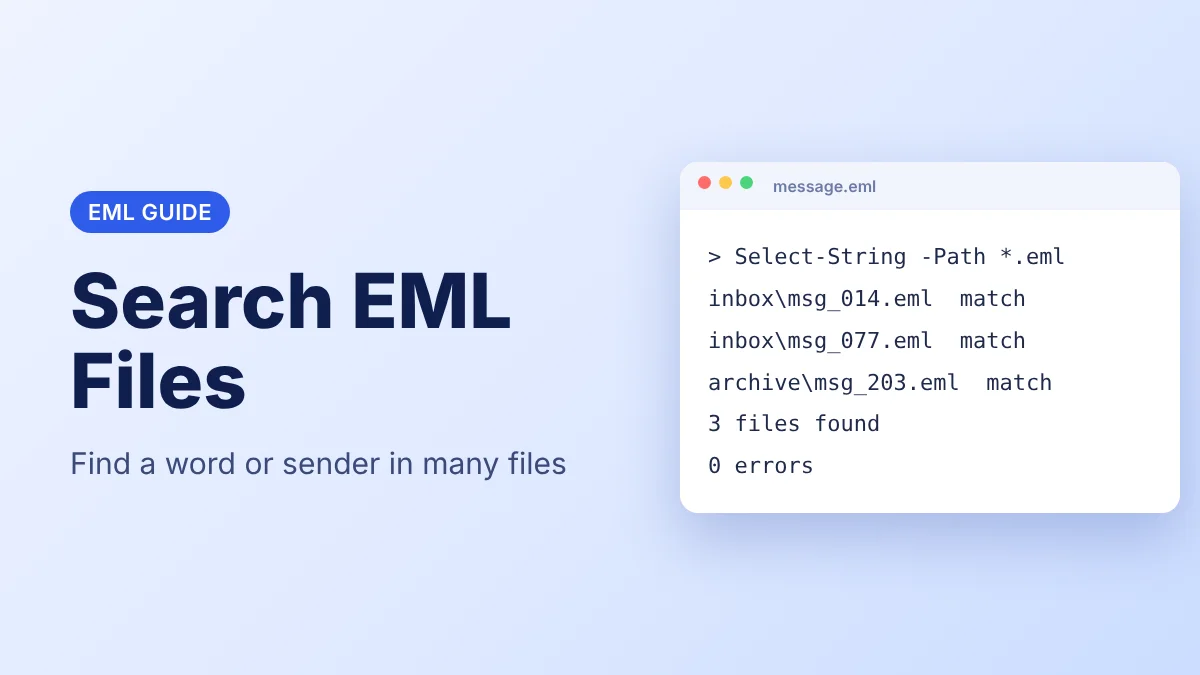
Most mail apps open one file at a time. Windows PowerShell and the Mac or Linux Terminal run a search in EML files with one command. Thunderbird searches imported messages. A Python script can search inside EML files and open the body of every message. Dedicated software adds AND, OR and NOT search operators and is the recommended method. This guide shows how to find text in EML files with all five methods. Many users ask how to search specific word in email files and the answer depends on the method.
Users who need the basics of the file first can open the EML file format guide. Users who want to check what is inside one message can follow the guide to examine EML file content. Once you find a message, EML Reader opens it in any modern browser with no install.
Open the Match in Your Browser
Open and preview an EML file in your browser after you find it. No install required.
Why Do Users Search Inside EML Files?
- Legal discovery. Teams search in EML files and search multiple EML files for a name, a case number or a date.
- Old mail. You can find text in EML files from an old backup when the mail app is gone.
- Invoices and receipts. Finance teams search within EML files for an invoice number.
- Support cases. IT teams search EML files for the error text a customer sent.
- Audit. Auditors check which messages mention a vendor or a project.
Which Method Should You Use to Search EML Files?
Advanced software is the recommended method because its AND, OR and NOT operators search inside EML files without commands or scripts. Users who ask how to find specific word in email files on Windows can use PowerShell. Users on a Mac or Linux can use grep. Users who already work in Thunderbird can search the imported messages there. Users who need decoded bodies can use the script.
| Method | Best For | Needs |
|---|---|---|
| 1 PowerShell | A word in many files on Windows | Windows PowerShell |
| 2 grep | A word in many files on Mac or Linux | Terminal |
| 3 Thunderbird | Imported messages | Thunderbird |
| 4 Python script | Decoded bodies and sender checks | Python 3 |
| 5 Software | Large archives and operator searches | EML Viewer Pro |
Method 1: Search EML Files With PowerShell
Users on Windows choose this method because PowerShell comes with Windows.
- Open PowerShell and move to the folder that holds the .eml files.
- Execute the line below. Replace invoice with your word.
Get-ChildItem -Path . -Filter *.eml -Recurse | Select-String -Pattern "invoice" -SimpleMatch -List- Look at the output. Every result is a file that contains the word.
According to Microsoft, the -SimpleMatch option treats the word as plain text and the -List option returns the first match in every file. Users who want to know how to search specific word in email text across a folder can use this line with any word.
Method 2: Find Text in EML Files With grep
Users on a Mac or Linux choose this method because grep comes with the system.
- Open Terminal and move to the folder that holds the .eml files.
- Execute the line below. Replace invoice with your word.
grep -ril --include="*.eml" "invoice" .- Look at the output. It lists the path of every file that contains the word.
The r option searches the folders inside the folder and the l option prints only the file names. Users who ask how to find specific word in email files by sender can search for the address in the same way.
Method 3: Search Inside EML Files in Thunderbird
Users who need to search in EML files inside a mail app choose Thunderbird because it searches the messages you import.
- Open Thunderbird and add the files to a folder. Users who need to add them first can follow the guide to import EML files in Thunderbird.
- Press Ctrl+K to open the global search across all messages.
- Type the word and press Enter.
- Press Ctrl+Shift+F to open the search dialog for one folder.
According to Mozilla, Ctrl+Shift+K opens the Quick Filter bar that narrows the messages in the current view. On a Mac use Command in place of Ctrl.
Method 4: Search Within EML Files With a Python Script
Users who want to know how to search specific word in email by sender and body choose this method because one command checks every message.
- Install Python 3 on your computer.
- Save the script below as search_eml.py.
import sys
from pathlib import Path
from email import policy
from email.parser import BytesParser

folder = Path(sys.argv[1])
word = sys.argv[2].lower()

for path in sorted(folder.rglob("*.eml")):
    with open(path, "rb") as f:
        msg = BytesParser(policy=policy.default).parse(f)
    body = msg.get_body(preferencelist=("plain", "html"))
    text = body.get_content() if body else ""
    haystack = " ".join([str(msg["From"]), str(msg["Subject"]), text]).lower()
    if word in haystack:
print(path, "|", msg["From"], "|", msg["Subject"])- Open a terminal in the folder that holds search_eml.py and execute
python search_eml.py folder_name invoice. Replace folder_name with the folder of your messages. - Look at the output. Every line shows the file path, the sender and the subject of a matching message.
The script decodes base64 bodies so it finds text that Methods 1 and 2 miss. Run it on a copy of your files.
Method 5: Search Multiple EML Files With EML Viewer Pro
Users with large archives choose this method. EML Viewer Pro opens EML files and has search operators that search within EML files and search multiple EML files at once.
- View option. Open and check a message from the results.
- AND operator. Finds messages that contain both words.
- OR operator. Finds messages that contain either word.
- NOT operator. Excludes messages that contain a word.
Methods 1 to 4 need commands or scripts and the automated software needs none, so use it for regular searches. Combine the operators to narrow the results when you search inside EML files. Users who want to check one message after a hit can follow the guide to examine EML file content.
EML Viewer Pro
Search within EML files with AND, OR and NOT operators and view every message.
Why Does a Text Search Miss Some EML Files?
An EML file can store the message body as base64 text and it always stores attachments as base64 blocks. A plain text search looks for the word in the raw text, so it does not match a word inside a base64 body. In the test for this guide, grep listed 2 of 3 matching messages and missed the one with a base64 body. The Python script in Method 4 found all 3.
A search also does not open the text inside an attached PDF or document. Users who need that text can follow the guide to extract attachments from EML files first.
What Problems Can Appear When You Search in EML Files?
- Word not found. Check the spelling and try a shorter word. Then use Method 4 in case the body uses base64.
- Too many results. Search for a full phrase or the sender address to narrow the list.
- Folders inside folders. The -Recurse option, the r option and the Python script all search the folders inside the folder.
- Special characters. The -SimpleMatch option in PowerShell treats the text as plain text.
- File will not open after the search. Follow the guide for an EML file not opening in Outlook or preview it with the browser tool.
Conclusion
People struggle to search EML files because mail apps open one message at a time. PowerShell and grep search in EML files with one line. Users who need to know how to find specific word in email folders can start there. Thunderbird searches imported messages and a Python script decodes base64 bodies. Automated software is the recommended method because its AND, OR and NOT operators search multiple EML files without commands. Users who ask how to search specific word in email archives now have five methods. Test the word on a few files before you rely on the result.
Frequently Asked Questions
Can You Search Inside EML Files Without Opening Them One by One?
Yes. PowerShell, grep and the Python script check every file in a folder with one command.
Does a Search Find Words Inside Attachments?
No. A search checks the message text. The text inside an attached PDF or document needs extraction first.
Can You Search EML Files by Sender?
Yes. The From field is part of the message so search for the sender address with any method.
Why Does a Search Miss Some Words in EML Files?
A body stored as base64 hides the word from a plain text search. The Python script decodes the body and finds the word.
How to Find Specific Word in Email Files?
Use Method 1 on Windows or Method 2 on a Mac or Linux. Replace invoice in the line with your word.
How to Search Specific Word in Email Messages in Thunderbird?
Import the files and press Ctrl+K. Type the word and press Enter.
Can You Search Multiple EML Files With Search Operators?
Yes. The dedicated software has AND, OR and NOT operators that search within EML files across a folder.