How to View EML Header and Trace the Sender

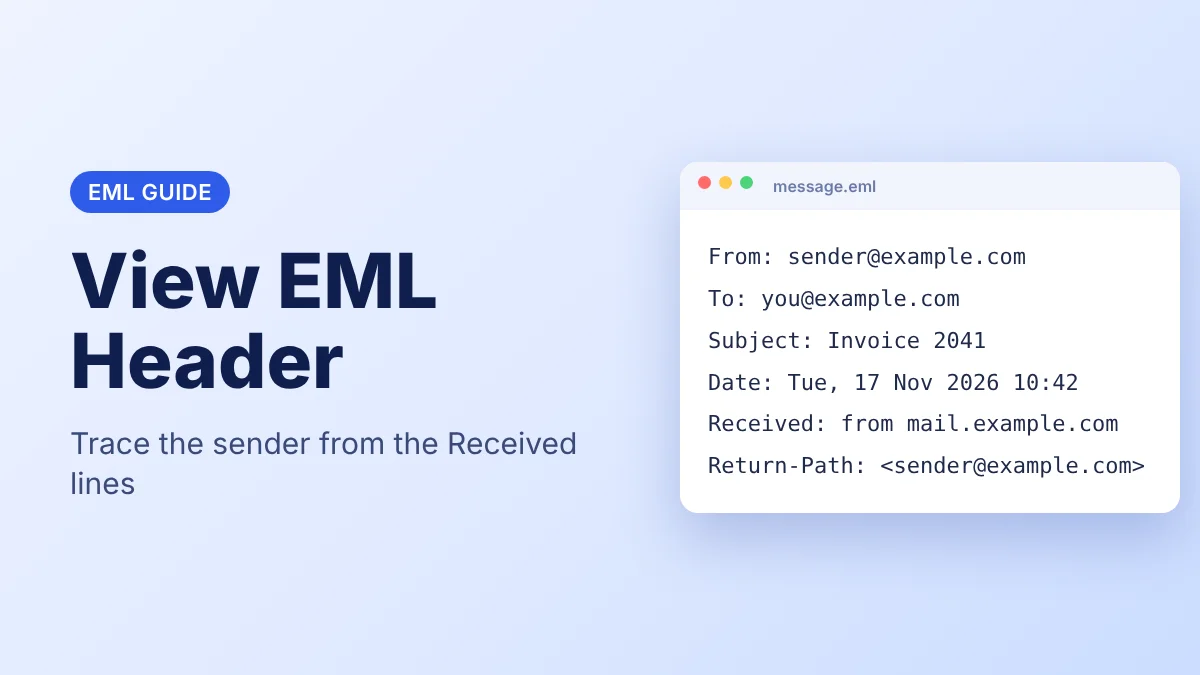
Quick Answer
You can view EML header data with five methods. Method 1 uses Notepad or any text editor. Method 2 uses Thunderbird and its message source. Method 3 uses new Outlook and its message details. Method 4 uses a Python script for many files. Method 5 uses a browser tool with no install. Check the Received lines to trace the sender. Copy your .eml files before you start.
Table of Contents
- How Do You View EML Header Data?
- Why Do Users Check EML File Headers?
- Which Header Fields Matter Most?
- Method 1: View EML Header in a Text Editor
- Method 2: View EML Header Through Thunderbird Message Source
- Method 3: View EML Header With New Outlook Message Details
- Method 4: Extract Headers With a Python Script
- Method 5: View EML Header in a Browser Tool
- How Can You Trace the Sender From the Header?
- What Problems Can Appear When You View EML Headers?
- Conclusion
- Frequently Asked Questions
How Do You View EML Header Data?
Every EML file begins with a block of plain text headers. The block records who sent the message and who received it. It also records the send time and the servers that handled the message on the way.
Most email apps hide this block and show only the body. A text editor shows it at once. Thunderbird and new Outlook show it through a menu. A short Python script prints it for one file or for a full folder. A browser tool opens many files in one view. This guide covers five ways to view EML header data and then shows how to trace the sender from the Received lines.
Users who need the basics of the file first can open the EML file format guide.
Check Headers in Your Browser
See the sender, date and subject of an EML message without a mail app. Open the file in your browser.
Why Do Users Check EML File Headers?
- Sender check. The From and Return-Path fields show which address sent the message so you can spot a mismatch.
- Delivery trail. The Received lines list the servers that handled the message and the time it passed them.
- Spam and phishing review. The Authentication-Results field records the SPF and DKIM results of the receiving server.
- Evidence. The Message-ID and Date fields identify one message exactly, which matters for legal and audit requests.
- Support. IT teams ask for headers when a message goes missing or arrives late.
Which Header Fields Matter Most?
According to RFC 5322, the From and Date fields are required and the Message-ID field is a globally unique identifier for one message. The table lists the fields you will check most.
| Field | What It Shows |
|---|---|
| From | The mailbox of the author. RFC 5322 requires it. |
| To | The mailbox the message was addressed to. |
| Date | When the author finished the message and queued it for sending. |
| Subject | The free text subject line. |
| Message-ID | A globally unique identifier for one message. |
| Return-Path | The address the sending server recorded for bounced mail. |
| Received | One line for every server that handled the message. RFC 5322 treats these trace fields as informational. |
| Authentication-Results | The SPF and DKIM results the receiving server recorded, according to RFC 8601. |
| MIME-Version and Content-Type | The format of the body and its character set. |
Methods To View EML Header Data
Users with one file choose a text editor. Users who already work in an email app choose Thunderbird or new Outlook. Users with a folder of messages choose the script. Users with no mail app choose the browser tool.
| Method | Best For | Needs |
|---|---|---|
| 1 Text editor | One file | Any computer |
| 2 Thunderbird | Messages already in an email app | Thunderbird |
| 3 New Outlook | Outlook users | New Outlook |
| 4 Python script | Many files | Python 3 |
| 5 Browser tool | Many files or no mail app | A browser |
Method 1: View EML Header in a Text Editor
Users with a single file choose this method because it needs no email app.
- Right-click the .eml file and select Open with.
- Select Notepad on Windows or TextEdit on Mac.
- Look at the top of the file. Header lines start with a field name and end with its value.
- Find the first empty line. According to RFC 5322, an empty line separates the header block from the body so everything above it is the header.
- Select those lines and copy them into a new file for analysis.
Long values continue on the next line with an indent. Treat an indented line as part of the line above it. Users who want the formatted message instead of raw text can use the browser tool in Method 5.
Method 2: View EML Header Through Thunderbird Message Source
Users who already work in Thunderbird choose this method.
- Open Thunderbird and select the message. Users who need to add the file first can follow the guide to import EML files in Thunderbird.
- Press Ctrl+U to open the message source.
- Look at the first lines of the window. They contain the header block and the body starts after the first empty line.
- Select the header lines you need and copy them.
The source window shows the raw text so the field names match the text editor method.
Method 3: View EML Header With New Outlook Message Details
Users who work in new Outlook choose this method.
- Open the message in new Outlook. If the file does not open, follow the guide for an EML file not opening in Outlook.
- Select More actions at the top of the message window.
- Select View and then View message details.
- Look at the Message details pane. According to Microsoft, it shows the message headers.
- Find the From field and copy the address inside the angle brackets.
These steps apply to new Outlook only. Users with classic Outlook can use Method 1 or the guide to view EML file without Outlook. Gmail users who already moved the message into Gmail can select the three dot menu next to Reply and then Show original, according to Google. Users who have not moved the file yet can follow the guide to open EML file in Gmail.
Method 4: Extract Headers With a Python Script
Users with many files choose this method because one command prints every header block.
- Install Python 3 on your computer.
- Save the script below as get_headers.py.
import sys
from email import policy
from email.parser import BytesParser

with open(sys.argv[1], "rb") as f:
    msg = BytesParser(policy=policy.default).parse(f, headersonly=True)

for name, value in msg.items():
    print(f"{name}: {value}")
print()
print("Hops:", len(msg.get_all("Received", [])))- Open a terminal in the same folder and execute
python get_headers.py message.eml. - Look at the output. It lists the header fields of the file and prints the number of Received lines as Hops.
Use the second script for a full folder. Save it as get_headers_folder.py and execute python get_headers_folder.py folder_name. It prints the file name and the header block for every .eml file in the folder.
import sys
from pathlib import Path
from email import policy
from email.parser import BytesParser

for path in sorted(Path(sys.argv[1]).glob("*.eml")):
    with open(path, "rb") as f:
        msg = BytesParser(policy=policy.default).parse(f, headersonly=True)
    print("File:", path.name)
    for name, value in msg.items():
        print(f"{name}: {value}")
    print()
Both scripts parse only the headers so the body and the attachments remain unopened. Users who need the files inside the message can follow the guide to extract attachments from EML files.
Method 5: View EML Header in a Browser Tool
Users with many files or no mail app choose this method. EML Reader opens EML files in any modern browser on Windows, Mac and Linux with no install.
- Open the tool in your browser.
- Select Drag and Drop Files Here and choose the EML files from your storage.
- Click Preview Message.
- Scroll down to the message list and open a message.
You see the headers, the formatted body, the inline images and the attachment list. According to its privacy page the tool processes files in your browser and does not upload them to its servers.
Preview Many Messages at Once
Preview the headers, body and attachments of many EML files in your browser. No install required.
How Can You Trace the Sender From the Header?
Tracing starts with the Received lines. According to RFC 5321, a forwarding server adds its own Received line at the top of the header block. The newest line sits first and the oldest line sits last.
- Find every line that starts with Received.
- Start at the top line. The server that delivered the message to your provider wrote it, so it is the most reliable line.
- Move down line by line. Most Received lines name the previous server and put its IP address in square brackets.
- Stop at the lowest line your own provider added. Servers further down wrote the rest, and you cannot verify them.
- Compare the result with the From address and the Return-Path address.
- Sender IP. The IP address in the lowest line your provider added belongs to the server that handed the message to your provider. For mail sent from a web or mobile app, that is the sender's mail server and not the sender's device.
- Authentication. Check the Authentication-Results line for SPF and DKIM results. According to RFC 8601, the field has no integrity protection of its own, so trust it only when your own receiving server added it.
- Analysis. Users who want a ready made analysis can paste a copy of the header into the Google Admin Toolbox Messageheader tool, according to Google. Remove personal addresses first.
What Problems Can Appear When You View EML Headers?
- Only the body shows. Most email apps hide the header block. Open the file in a text editor with Method 1.
- Header lines look cut. Long values continue on an indented line. Treat that line as part of the line above it.
- No Received lines. An unsent draft has none because no server handled it.
- File will not open. Follow the guide for an EML file not opening in Outlook or use a text editor.
Conclusion
People struggle to view EML header data because email apps hide the header block. A text editor shows it at once. Thunderbird and new Outlook show it through a menu. A Python script handles many files and a browser tool needs no install. Work on a copy of the file and share only the lines you need because a header contains addresses and server names.
Frequently Asked Questions
Can I View EML Header Data Without an Email App?
Yes. A text editor opens the file and shows the header lines at the top. The header block ends at the first empty line.
Does an EML File Always Contain Received Lines?
No. An unsent draft has none because no server handled it.
Are EML Headers Plain Text?
Yes. The header block is text so any text editor opens it. An empty line separates it from the body.
Can Opening an EML File in a Text Editor Alter It?
No. Opening the file only displays it. Copy the file first and do not save edits to the original.
Can You Find the Sender IP in an EML File?
Yes with one limit. The lowest Received line your own provider added shows the IP address of the server that handed the message to your provider.
Does the From Field Prove Who Sent the Message?
No. The sender writes the From field so a spoofed message can show any address. Check the Authentication-Results line and the Received lines too.
Is It Safe To Paste an Email Header Into an Online Tool?
No, not without checking it first. A header contains addresses and server names. Remove personal details before you paste it anywhere.