How to Import EML Files Into Apple Mail on Mac

Quick Answer
You can import EML into Apple Mail in four ways. A drag and drop into a mailbox suits a few messages. Opening the file in Mail shows one message at a time. An MBOX file works with the Import Mailboxes wizard. A browser tool checks messages before you import. Dedicated software converts a large folder in bulk. Apple lists only Mail and mbox sources for import. Copy your .eml files before you start.
Table of Contents
- Can You Import EML Files Into Apple Mail?
- Method 1: Import EML Files Into Apple Mail With Drag and Drop
- Method 2: Open an EML File in Apple Mail
- Method 3: Import EML Into Apple Mail as an MBOX File
- Method 4: Import Multiple EML Files Into Apple Mail With EML Viewer Pro Plus
- How Do You Fix EML Import Problems in Apple Mail?
- Which Way Should You Import EML Into Apple Mail?
- Frequently Asked Questions
Can You Import EML Files Into Apple Mail?
Yes. You can import EML into Apple Mail but Mail does not do it for you. According to Apple, the Import Mailboxes option in Mail accepts Apple Mail and mbox sources. An .eml file is neither of them. Users who want to import EML files into Apple Mail therefore drag the messages into a mailbox or convert them to MBOX first.
People import EML files to Apple Mail after they leave Windows Live Mail or Thunderbird. Others restore saved messages or collect evidence in one account. Users can learn how the EML file format works to see why Mail needs a manual step for it.
This guide shows how to import EML files into Apple Mail on a Mac. It also explains what each method does to your original files.
Method 1: Import EML Files Into Apple Mail With Drag and Drop
Users with a few files choose this method. It works when the messages must sit inside a mailbox.
- Open Mail and create a mailbox with Mailbox > New Mailbox. Name it Imported.
- Open Finder and select the .eml files.
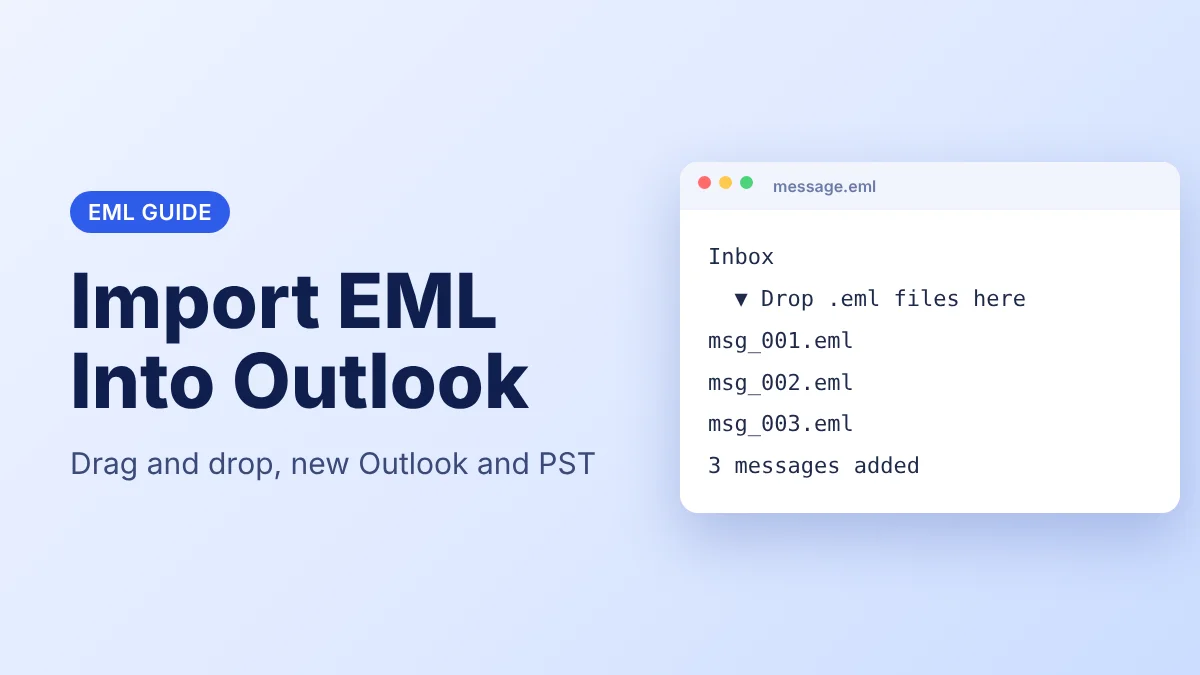
- Drag the files onto the Imported mailbox in the Mail sidebar.
- Open the mailbox and check the sender and the date of each message.
The drag copies each message into Mail and leaves the .eml file in Finder. Select a small group first to import EML into Apple Mail without a freeze. Users who need to move a large folder should read the next methods.
Mail stores every imported message as an .emlx file inside its own library. That is the form of the file when Mail holds the message after the import.
Method 2: Open an EML File in Apple Mail
Users who need to read one message choose this method. It does not add the message to a mailbox.
- Right click the .eml file in Finder.
- Select Open With > Mail.
- Read the message in the window that opens.
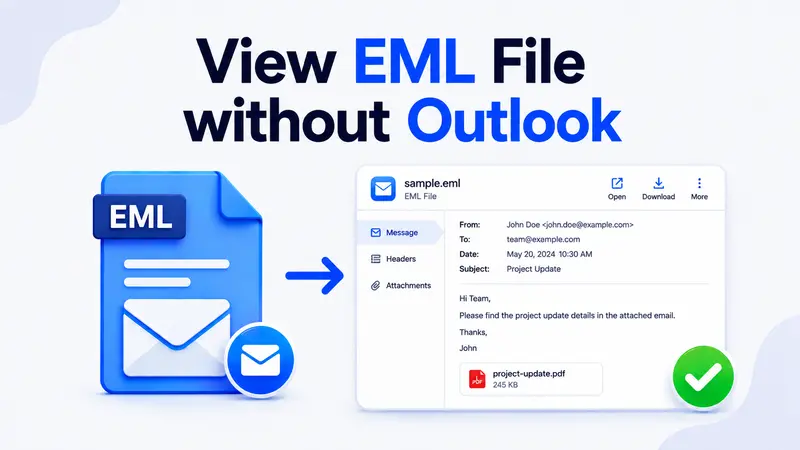
Mail shows the headers and the body and the attachments. This method views the message and does not import EML files into Apple Mail as saved items. Users whose files open as plain text can read how to view an EML file without Outlook.
Users can also open the message in the EML Reader browser tool. It shows the headers and the body and the attachment list without Mail and does not add the message to Apple Mail.
Check Files Before Importing
Preview the headers and the body of any EML message in your browser before you move it into Mail.
Method 3: Import EML Into Apple Mail as an MBOX File
Users with many files choose this method. Apple Mail imports mbox files through its wizard so the EML files must become MBOX first. Thunderbird users can export a folder as mbox with an extension. Users can also read how to import EML files in Thunderbird before they export the folder.
- Convert the .eml files to one .mbox file.
- Open Mail and select File > Import Mailboxes.
- Select Files in mbox format and click Continue.
- Select the .mbox file and click Continue.
- Open the Import mailbox in the sidebar when Mail finishes.
According to Apple, Mail places the imported items in a mailbox named Import. Move them into your own folders after the check. This is the manual way to import EML files to Apple Mail in one pass.
Method 4: Import Multiple EML Files Into Apple Mail With EML Viewer Pro Plus
Users with a large folder choose dedicated software. Drag and drop becomes slow when you must import multiple EML files into Apple Mail by the hundred. The manual MBOX route also needs another application for the conversion.
The advanced software converts the EML files in bulk to a format that Apple Mail imports. It works on a folder at a time so you import EML files to Apple Mail without a drag for each message. The software runs on Windows so convert the files on a PC and copy the output to your Mac. Test the output on a few files first.
Users who need a PST for Outlook can read how to import EML files into Outlook.
Convert EML Files for Apple Mail
Convert a whole folder of EML files at once and import the output into Apple Mail on your Mac.
How Do You Fix EML Import Problems in Apple Mail?
- The drag does nothing. Check that the Imported mailbox is a mailbox on your Mac and not a smart mailbox. A smart mailbox does not accept dropped files. Create a new mailbox and try again to import EML into Apple Mail.
- The message arrives empty. Open the file in the browser tool to confirm that the body exists. A damaged file shows no text.
- Mail slows down on a large batch. Drop the files in smaller groups. Wait until the mailbox updates before the next group.
- Mail rejects the file. Import Mailboxes accepts mbox and Apple Mail sources only. Convert the .eml files to MBOX before you import EML files into Apple Mail.
- Attachments are missing. Open the original .eml file in the browser tool and check the attachment list. Users can also extract attachments from EML files and attach them again.
Which Way Should You Import EML Into Apple Mail?
Drag and drop fits a few messages. The MBOX import fits a large folder. Opening the file fits a single read. Dedicated software fits a large folder.
Copy your .eml files before you start. The copy lets you repeat the import if a message fails. Users who work on a Windows PC can also convert EML to PST for Outlook.
Frequently Asked Questions
Can I Import EML Files Into Apple Mail?
Yes. Drag the .eml files from Finder onto a mailbox in Mail. The messages appear in the mailbox and the originals stay in Finder.
Can I Import Multiple EML Files Into Apple Mail at Once?
Yes. Select many files in Finder and drag them onto a mailbox together. Use smaller groups when Mail slows down. Users with a large folder can convert the files to MBOX and import that one file.
What Does an EML File Contain?
An EML file stores one email with its headers and body and its attachments. Mail shows the same parts once the message is in a mailbox.
Will Dragging EML Files Change My Originals?
No. Dragging copies the message into Mail and leaves the .eml file where it was. Copy the files first anyway.
Does the Import Mailboxes Wizard Accept EML Files?
No. According to Apple, it accepts Apple Mail and mbox sources. Convert the .eml files to MBOX before you use it.
Where Do the Imported Messages Go?
An mbox import lands in a mailbox named Import. A dropped file lands in the mailbox where you drop it. Mail stores each message as an .emlx file in its library.
Can I Import EML Files Into Apple Mail Without Converting Them?
Yes. Drag and drop needs no conversion. The MBOX import needs it. Both ways work on a Mac.